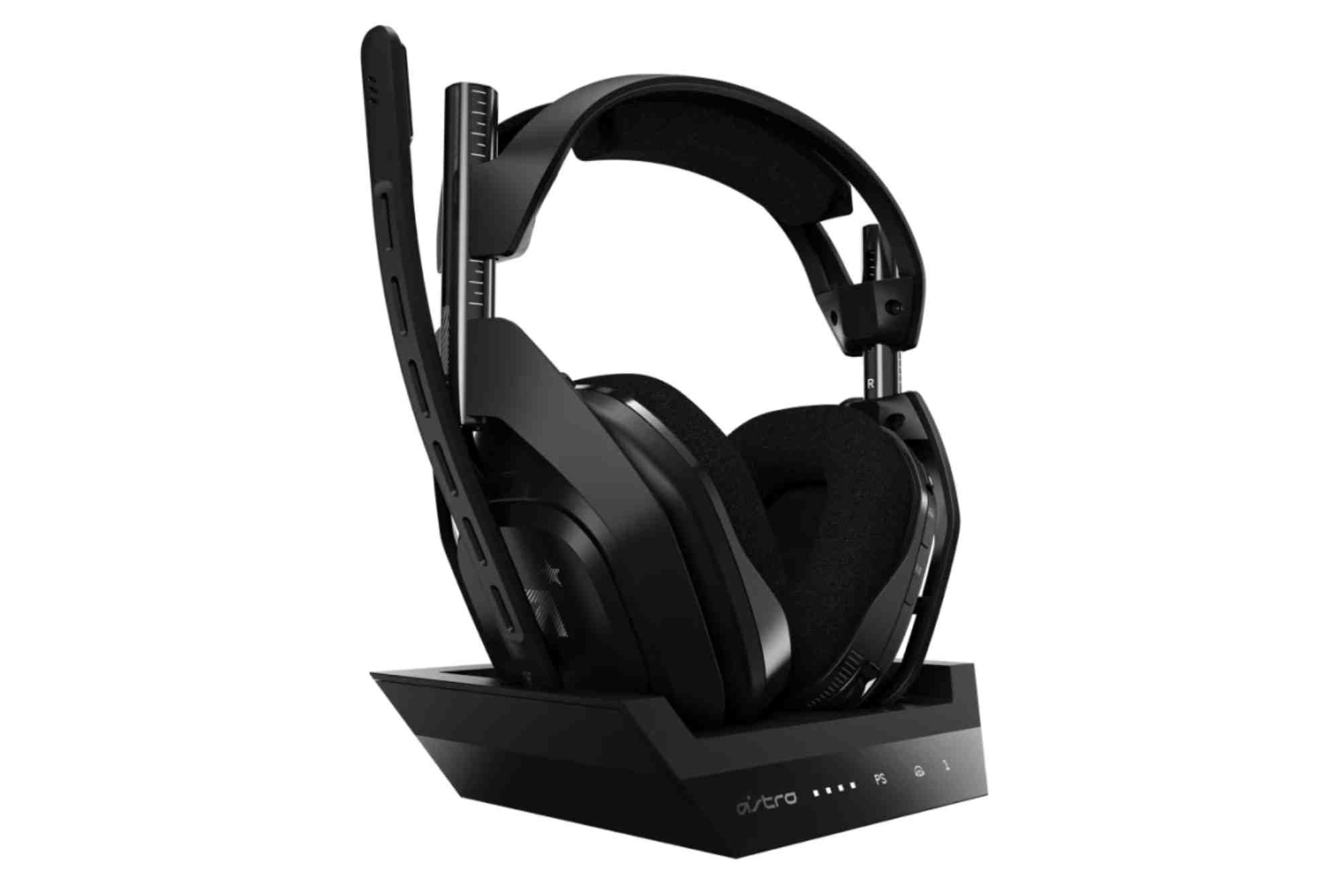
Astro A50 Software Setup and Customization Tips
The Astro A50 software is a powerful tool designed to unlock the full potential of the Astro A50 wireless headset. Whether you’re a casual gamer or a professional streamer, setting up and customizing the software properly can dramatically enhance your gaming experience. From adjusting audio profiles to configuring mic settings, this guide offers everything you need to know.
Understanding the Astro A50 Software
Before diving into setup and customization, it’s important to understand what the Astro A50 software does. The software—called Astro Command Center (ACC)—is a desktop application that lets users configure their A50 headset’s audio settings, mic input, and firmware updates. It’s compatible with both Windows and macOS and works best with the latest firmware.
How to Install the Astro A50 Software
The installation process is straightforward, but small missteps can cause issues later on. Begin by downloading the latest version of Astro Command Center from the official Astro Gaming website. Make sure your headset and base station are connected via USB before you start the installation.
Once downloaded, run the installer and follow the prompts. After the software launches, it should automatically detect your headset. If it doesn’t, double-check your USB connection or try using another port. It’s also wise to allow the app to access any necessary drivers during installation.
Initial Setup and Firmware Updates
When launching the Astro A50 software for the first time, you’ll likely be prompted to update your firmware. Always update your headset and base station to the latest version to avoid performance or connectivity issues. Firmware updates often include bug fixes, enhanced audio features, and better platform compatibility.
Click “Update Firmware” and allow the process to complete. Do not unplug your headset or base station during the update, as this can cause serious malfunctions.

Customizing Audio Profiles
One of the standout features of the Astro A50 software is its ability to manage and tweak audio profiles. The A50 comes with three preset EQ modes: Astro, Pro, and Studio. However, the real power lies in creating your own custom EQ profiles.
Click on the “Equalizer” tab. Here, you’ll see a 5-band graphic equalizer. You can adjust each frequency band manually or load presets based on game genres like FPS, RPG, or racing. If you’re into competitive gaming, you might want a profile that emphasizes footsteps and gunfire, which typically fall in the mid to high-frequency range.
Make small adjustments and test each change in real-time. Save profiles with clear names so you can switch between them quickly depending on what you’re playing.
Microphone Tuning and Sidetone Control
The Astro A50 software also allows you to fine-tune your microphone. Head to the “Microphone” tab. Here, you can adjust mic gain, sidetone, and noise gate settings.
Mic gain controls the sensitivity of your microphone. If teammates complain about not hearing you, increase the gain slightly. Sidetone lets you hear your own voice through the headset, which helps prevent shouting during gameplay. Most gamers find a medium sidetone level ideal.
The noise gate settings (Low, Medium, High) determine how much background noise the mic picks up. For noisy environments, choose High to filter out keyboard clicks or fan noise.
Game-Voice Balance Feature
Unique to Astro A50 is the game-voice balance dial. This physical dial on the headset lets you adjust the ratio of in-game audio to voice chat. However, the software lets you digitally refine this balance for even more control.
Use the Astro Command Center to preset this balance before starting a session. If you prefer to hear your team louder during competitive matches, slide the balance more toward voice. For immersive single-player campaigns, adjust it toward game audio.
USB vs Optical Modes: Know the Difference
The Astro A50 base station can be connected using USB or optical cable. The software behaves slightly differently depending on your setup. On Xbox and PlayStation, optical allows for Dolby surround sound. On PC, USB mode is usually sufficient for full software features.
In the software, go to “Settings” to select your output mode. Some users find better performance and clarity with optical mode on console. Make sure your console settings also match this choice to avoid sound conflicts.
Troubleshooting Common Setup Issues
Even with a well-designed software interface, users occasionally run into setup problems. If your headset isn’t being recognized, check for outdated firmware or USB driver conflicts. Reinstalling the Astro A50 software can also fix detection problems.
Another common issue is desync between audio and chat. This can often be resolved by resetting the headset through the base station and reapplying the latest settings through the software.
Also, ensure that your system’s default audio output is set to “Astro A50 Game” and not your system speakers. This often gets overlooked but is crucial for proper sound routing.
Best Customization Tips from Pro Users
Pro users often recommend keeping multiple EQ profiles—one for each major gaming category. For example, you might create a “Warzone” profile that boosts mids and highs and a “Cyberpunk” profile that enhances bass for immersive soundtracks.
Another popular trick is saving backup copies of your EQ settings to a local file. If you ever reinstall the software or switch PCs, you can import your settings instead of starting from scratch.
Gamers also suggest adjusting the sidetone when switching from a solo stream to a team-based game. This flexibility is what makes the Astro A50 software stand out in the crowded headset market.
Maximize Your Gaming with Astro A50 Software
Whether you’re looking to gain a competitive edge or simply enjoy richer, clearer sound, the Astro A50 software delivers deep customization and intuitive controls. With proper setup and tailored EQ settings, your headset becomes a fully personalized sound environment.
Don’t settle for factory presets. Take the time to explore the software and tune it to your liking. Your ears—and your teammates—will thank you.
FAQs
How do I get Astro A50 software?
You can download the Astro Command Center software from the official Astro Gaming website. Make sure to select the correct version for your operating system.
Why is my Astro A50 not being detected by the software?
Check your USB connection and ensure the headset is seated properly in the base station. Try using another USB port or reinstall the software.
How do I update my Astro A50 firmware?
Launch the Astro A50 software and connect your headset. If an update is available, the software will prompt you. Follow the on-screen instructions to complete the update.
Can I use Astro A50 software on a Mac?
Yes, the Astro Command Center is compatible with macOS. However, some features may work better on Windows due to broader driver support.
What’s the best EQ setting for FPS games?
For FPS games, increase the mids and highs to make enemy footsteps and gunfire more prominent. Lower the bass slightly to reduce rumble and focus on directional cues.
Is Dolby Atmos supported with Astro A50?
The Astro A50 headset supports Dolby Audio natively, especially when using an optical connection on consoles. You can also purchase and activate Dolby Atmos on Windows for enhanced spatial sound.
Does the Astro A50 software work without the base station?
No, the software requires both the headset and the base station to apply changes and updates. They must be connected via USB.
Can I save multiple EQ profiles in the Astro software?
Yes, you can create and store multiple custom EQ profiles. Simply name each one and switch between them depending on your game or media preference.