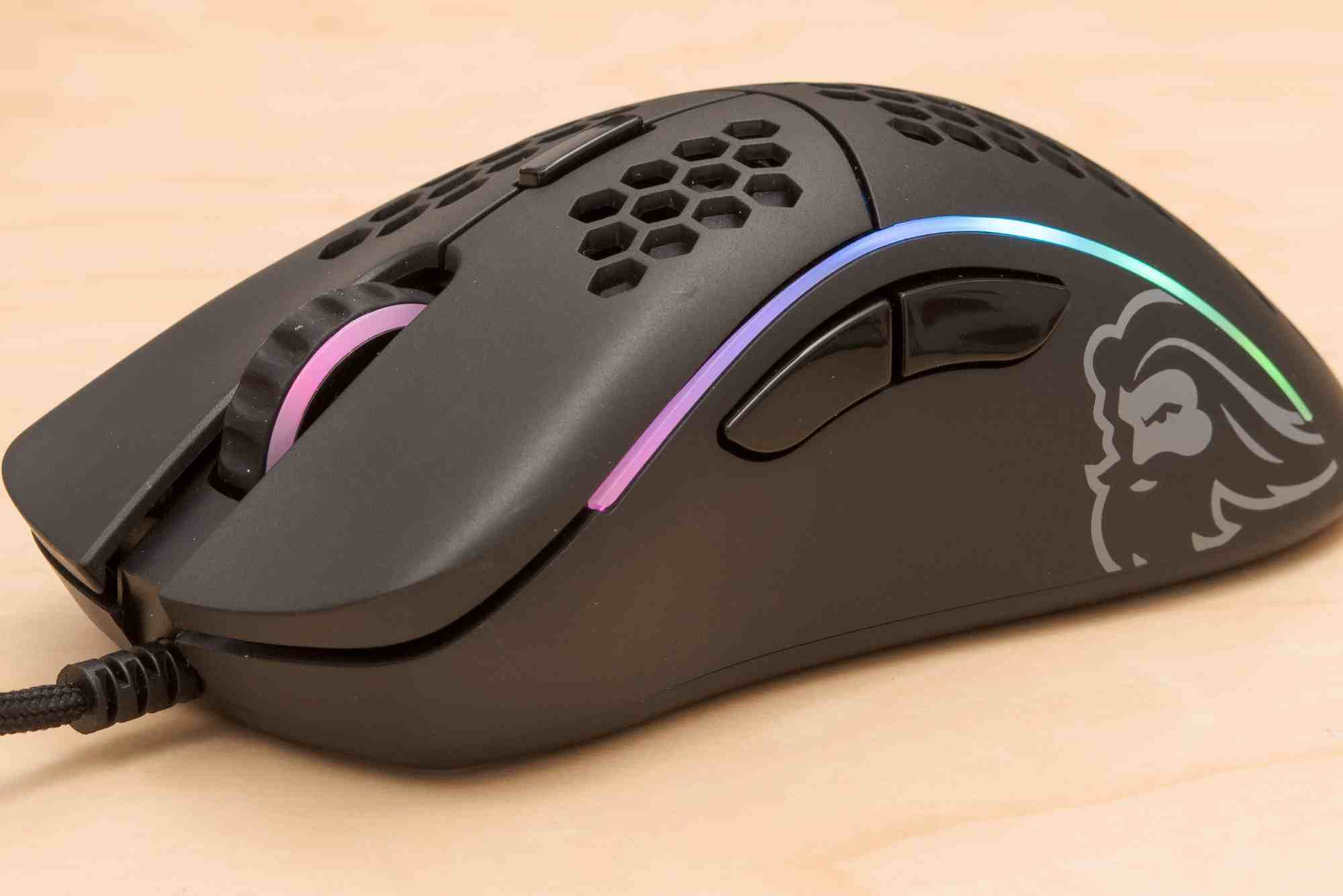
Glorious Model D Software Overview: Features and Setup
In the world of PC gaming, precision, customization, and speed are everything. The Glorious Model D software is designed to give users full control over one of the most beloved lightweight gaming mice on the market—the Glorious Model D. Whether you’re a competitive gamer or just want a better desktop experience, this software is key to unlocking the mouse’s full potential.
This guide will walk you through everything you need to know about the Glorious Model D software. From its intuitive user interface to advanced DPI settings, RGB lighting control, macro assignments, and performance optimization, we’ve covered it all. Let’s dive in and explore how to get the most out of this powerful software.
What Is Glorious Model D Software?
The Glorious Model D software is a free, downloadable utility that allows users to configure and personalize their Glorious Model D mouse. Released by Glorious PC Gaming Race, this software transforms your gaming mouse from a plug-and-play device into a highly customized performance tool.
Without this software, users are limited to the default settings. With it, you gain full control over sensitivity, RGB effects, polling rate, button functions, macros, and more. In short, it’s essential for serious gamers and power users alike.
Why Use the Glorious Model D Software?
If you’re using the Model D and haven’t installed its software, you’re not experiencing the full power of the device. The software lets you adjust critical settings like DPI stages, debounce time, and lighting effects. These are not just cosmetic changes—they directly affect performance, speed, and comfort.
Gamers often adjust DPI for different game genres. For instance, FPS players prefer lower DPI for more accurate aiming, while MOBA players may opt for faster cursor speeds. With Glorious Model D software, you can fine-tune these settings to your exact preference.

System Requirements and Download
Before diving into features, make sure your PC meets the minimum system requirements:
- Windows 7 or later (64-bit)
- At least 100MB of available storage
- USB port for the mouse
- Internet connection to download updates
You can download the latest version of the software directly from the official Glorious website. Just search for “Glorious Model D software” and navigate to the download section.
Installation and Initial Setup
After downloading the installer, open the file and follow the on-screen instructions. The installation is lightweight and should take less than a minute.
Once installed, launch the software and ensure your Glorious Model D mouse is connected. The software should detect your device immediately. From here, you’ll see a dashboard with multiple tabs including DPI, Lighting, Performance, and Macro.
Features of the Glorious Model D Software
The software is divided into easy-to-navigate sections. Each tab gives you powerful tools to shape how the mouse behaves and looks.
DPI Settings
The DPI (dots per inch) tab allows users to define up to six DPI stages. Each stage is color-coded so you can quickly see which one you’re using via the mouse’s LED indicator. You can set DPI values anywhere from 400 to 12,000.
This is especially helpful for gamers who switch between low-DPI sniping and high-DPI rapid movement. You can assign a DPI toggle button and switch on the fly without opening the software.
RGB Lighting Control
The Glorious Model D is famous for its RGB aesthetics. The software includes extensive RGB customization options:
- Choose from presets like Wave, Breathing, Single Color, Tail, and Rave
- Adjust brightness and speed
- Sync lighting with other Glorious devices
Want a solid red light while gaming and a rainbow wave while idle? You can do that easily here.
Button Customization
Every button on the Glorious Model D is programmable. The software lets you reassign functions to each button. Whether it’s a keyboard shortcut, macro, media control, or mouse command, you can tailor the mouse layout to your workflow or game.
This is especially useful in MMOs or productivity applications where quick access to commands can save time or lives.
Macro Creation
The macro editor is another standout feature. You can record custom sequences of actions with precise timing and bind them to any button. Need to automate a spell combo or a workflow shortcut? The macro tab makes it possible.
The recording tool captures keystrokes and mouse clicks with millisecond precision. You can also edit delay times and repeat cycles for granular control.
Performance Tuning
The performance tab allows you to tweak settings like:
- Polling rate (125Hz to 1000Hz)
- Debounce time (as low as 4ms)
- Lift-off distance
- Angle snapping
These adjustments impact how the mouse interacts with your surface and how responsive it feels. Lower debounce time is great for speed-clicking, while angle snapping can smooth out your movements in drawing or editing software.
Tips for Best Setup
Setting up the Glorious Model D software properly can greatly enhance your user experience. Here are some best practices:
- Assign a dedicated DPI shift button for fast changes
- Turn off RGB effects during competitive play to reduce distractions
- Use low debounce time for drag-clicking or butterfly-clicking
- Save different profiles for work, browsing, and gaming
Always remember to export your settings so you can back them up or transfer them to another PC.
Troubleshooting Common Issues
Sometimes the software may not recognize the mouse, especially after a Windows update or driver change. If this happens:
- Unplug and replug the mouse
- Restart the software
- Reinstall the latest version
- Check USB ports and try another one
If your macros aren’t working or RGB settings won’t save, make sure you’re clicking “Apply” after making changes. Also, ensure that firmware is up to date via the software’s built-in updater.
Why the Software Matters
The Glorious Model D software is more than just a tool—it’s an essential companion for one of the best lightweight mice available. From high-level gaming to daily tasks, this software allows you to fully optimize your device for your needs. Whether you’re fine-tuning sensitivity or setting up lighting to match your build, the customization options give you control, comfort, and performance.
FAQs
How do I download the Glorious Model D software?
You can download the software from the official Glorious PC Gaming Race website under the Model D support section.
Can I use Glorious Model D without the software?
Yes, the mouse works out-of-the-box with default settings. However, you’ll miss out on custom DPI, RGB control, macros, and other performance features.
Does Glorious software support macOS?
As of now, Glorious Model D software is only available for Windows. macOS users must rely on default mouse behavior or third-party tools.
How do I fix Glorious software not detecting my mouse?
Try reconnecting the mouse, restarting your PC, reinstalling the software, or switching USB ports. Also, ensure firmware and software are updated.
What is the debounce time in the Glorious Model D software?
Debounce time is the interval during which the mouse won’t register another click. Lower values are ideal for techniques like drag-clicking.
Can I save multiple profiles?
Yes, you can create, save, and load multiple profiles based on different games or tasks using the profile manager inside the software.
Is it safe to use Glorious Model D software?
Yes, the software is developed and maintained by Glorious PC Gaming Race and is safe to install from their official website.