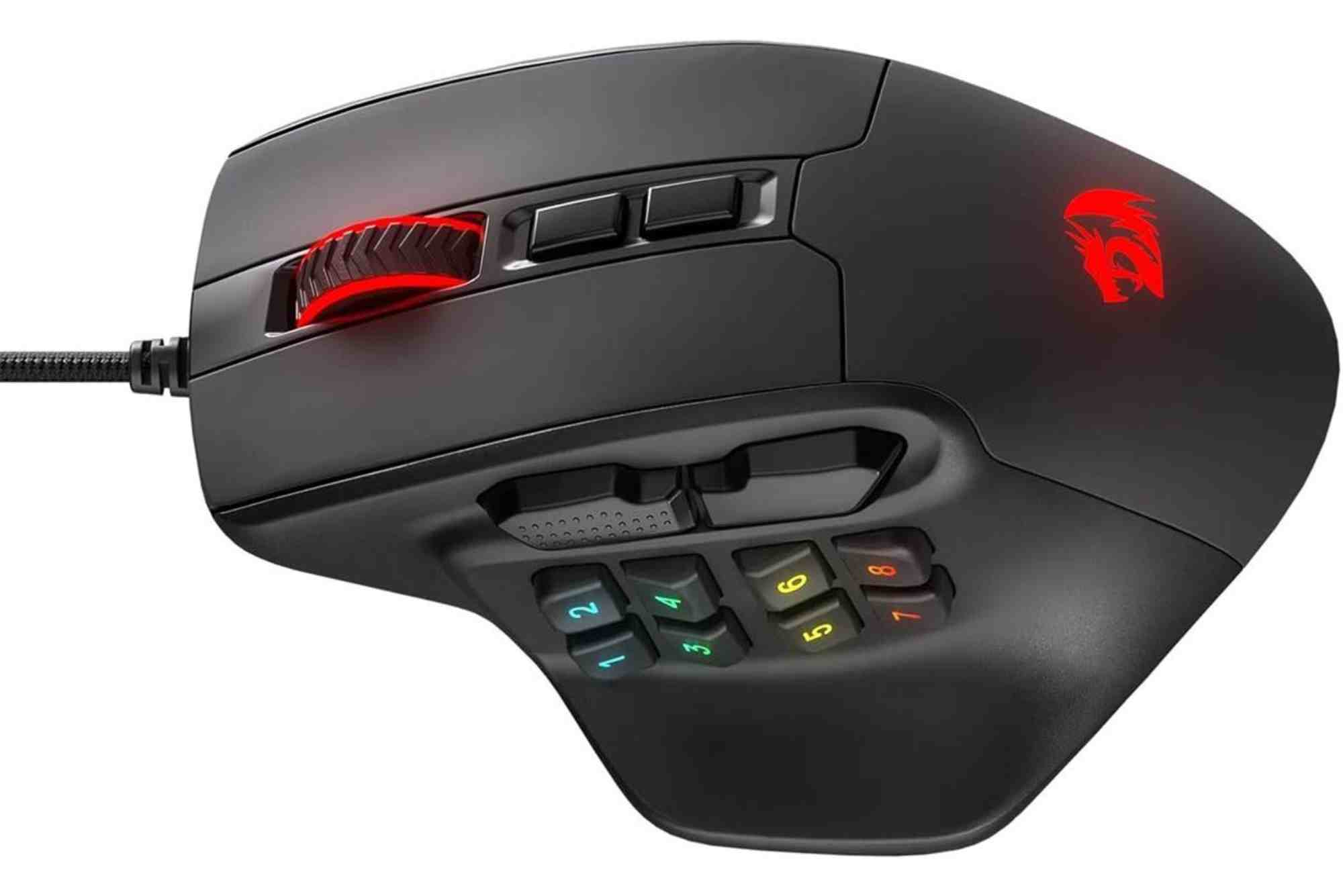
A Quick Guide to Red Dragon Software Installation
Red Dragon software enhances your gaming hardware by offering powerful customization tools. Whether you’re fine-tuning keybindings or customizing RGB lighting, installing the Red Dragon software is your first step toward a personalized setup. In this guide, we’ll walk you through the entire installation process, from download to configuration, while covering key features, compatibility, and common issues users face.
Installing software can be a frustrating experience if you’re not sure where to start—but don’t worry. This guide is crafted to be simple, effective, and beginner-friendly, while also catering to experienced users who want to optimize performance.
Understanding Red Dragon Software
Red Dragon is known for offering affordable and feature-packed gaming peripherals, such as keyboards, mice, and headsets. Their software supports these devices by giving users the tools to control lighting effects, macros, DPI settings, and more.
The Red Dragon software serves as a centralized hub for all device configurations. While some of their products come with individual utilities, many newer ones are supported by unified software, streamlining the experience for gamers.
Key Functions of the Software
- Customize RGB lighting modes
- Program macros for keys and mouse buttons
- Adjust DPI and sensitivity settings
- Save different profiles for different games
- Update firmware on supported devices
Preparing for Installation
Before you install anything, ensure your system meets the software’s basic requirements. While Red Dragon doesn’t list high-end specs for its utility software, a few things matter.
System Requirements
- Windows 7, 8, 10, or 11 (most Red Dragon software is Windows-only)
- 50MB to 150MB of free storage
- USB port for connecting your Red Dragon device
- Administrator privileges for installation
Mac users, unfortunately, are usually left out. Red Dragon’s official software is mostly unavailable for macOS, although a few third-party tools might offer partial compatibility.

Where to Download Red Dragon Software
Avoid third-party websites. Always download directly from Red Dragon’s official website or the product-specific support page. This ensures you’re getting the latest, virus-free version of the software tailored for your device.
Once you’re on the site, search for your product model. Each model has its own support section with the proper software download. Make sure to match the exact model number to avoid compatibility issues.
How to Install Red Dragon Software
Installation is straightforward, but attention to detail helps avoid future bugs or glitches.
Download the Installer
After finding your device’s support page, click on the correct software link. A .zip file or .exe installer will begin downloading. Save it in an accessible location such as your desktop or Downloads folder.
Extract the ZIP (if applicable)
If the file is a ZIP archive, right-click and select “Extract All.” This creates a new folder with the actual installer inside. Double-click the .exe file to begin.
Launch the Installer
A prompt will ask for permission to make changes to your system. Click “Yes” to proceed. Follow the on-screen instructions. Most of the time, the default installation path (usually in Program Files) is fine.
Complete Setup
Once installed, the software may prompt you to reboot your system or reconnect your device. After restarting, open the software, and it should recognize your Red Dragon peripheral instantly.
If it doesn’t, try unplugging and replugging your device. Still nothing? Make sure the device is compatible with the software version you installed.
Initial Software Configuration
After successful installation, you’ll be greeted with the software dashboard. This is where the real fun begins—customizing your hardware to suit your needs.
Device Recognition
The software will display all connected Red Dragon devices. You can switch between them easily using tabs or a dropdown menu.
Customizing RGB Lighting
For keyboards and mice with lighting, the RGB tab allows you to:
- Select from preset modes (e.g., wave, breathing, static)
- Adjust speed and brightness
- Assign custom colors to individual keys (for supported devices)
Programming Macros
The macro section allows for complex keybinds or multi-step actions. You can:
- Record keyboard/mouse input
- Assign delays
- Save and name macros
- Assign macros to keys or buttons
This is useful for gamers, especially in MMOs and RTS titles, where repetitive actions can be automated.
Adjusting DPI and Polling Rate
Mice supported by Red Dragon software allow on-the-fly DPI adjustments. You can define DPI levels, change polling rates, and even set acceleration preferences. These settings make a big difference in games that demand speed and precision.
Troubleshooting Common Issues
Even with a smooth installation, a few hiccups may occur. Here are the most common issues users face with Red Dragon software and how to fix them.
Software Not Detecting Device
This happens frequently when:
- The wrong version of the software is installed
- The USB port is malfunctioning
- Drivers are missing
Fix: Make sure to download the correct software for your device. Also, switch to a different USB port and ensure you’ve updated your Windows USB drivers.
Software Crashes or Freezes
This can be due to software conflicts or outdated system drivers.
Fix: Run the software in compatibility mode (right-click → Properties → Compatibility). Also, check your antivirus—some aggressive programs might block device configuration utilities.
Mac Compatibility Problems
As mentioned earlier, Red Dragon software is largely Windows-centric.
Workaround: Use third-party mapping tools like Karabiner-Elements or SteerMouse for limited functionality on macOS. However, advanced features like RGB control may not work.
Keeping Software Updated
Red Dragon doesn’t have automatic update features in most versions, so it’s up to you to check their website for the latest versions. Firmware updates, when available, can improve performance and add new features. Be sure to follow instructions carefully during firmware updates to avoid device bricking.
Advanced Tips for Power Users
For gamers who want the most out of their setup, Red Dragon software allows profile exports. This means you can save and share configurations, or use different settings for different games.
To do this, locate the profile management tab. Create a new profile, adjust settings, and save. You can even set profiles to activate automatically when specific applications launch.
Why the Right Installation Matters
Installing Red Dragon software correctly is the key to unlocking your device’s full potential. From RGB lighting to advanced macros, this tool turns a basic setup into a highly customized experience.
Whether you’re a casual gamer or a competitive player, optimizing your device through Red Dragon’s software will give you more control, better performance, and a unique look.
FAQs
How do I install Red Dragon software?
Download it from the official Red Dragon website by searching your product model. Then run the installer and follow the steps.
Why isn’t my Red Dragon mouse showing up in the software?
You may have downloaded the wrong software version. Double-check your model number and ensure the USB port is working.
Does Red Dragon software work on Mac?
Not officially. Most Red Dragon tools are Windows-only. You can try third-party apps, but functionality will be limited.
Can I use Red Dragon software to set macros?
Yes. The software includes a macro recorder that allows you to assign complex inputs to specific buttons or keys.
Where can I download Red Dragon software?
Always use the official Red Dragon website at www.redragonzone.com to avoid malware or compatibility issues.
Is Red Dragon software safe?
Yes, when downloaded from the official site. Avoid third-party download links to protect your system.
Do I need to update the software regularly?
It’s a good idea to check periodically for updates, especially if new firmware or device compatibility is released.