Corsair K70 Rapidfire Software: How to Customize Your Keyboard
The Corsair K70 Rapidfire is a favorite among gamers and power users alike. With its ultra-fast Cherry MX Speed switches and robust aluminum frame, this mechanical keyboard offers precision and durability. But the real power lies in its customization capabilities—made possible through the Corsair K70 Rapidfire software, known as iCUE. Whether you’re optimizing lighting effects, setting macros, or tweaking key functions, iCUE turns your K70 into a personalized control hub.
Why Use Corsair K70 Rapidfire Software?
Corsair’s iCUE software is more than just a driver; it’s a full-featured configuration suite. With it, you can manage every aspect of your K70 Rapidfire, from RGB lighting to game-specific profiles. If you’re a gamer, streamer, or even a programmer, using the Corsair K70 Rapidfire software gives you the flexibility to work smarter and faster. You’ll be able to create macros, synchronize lighting with other Corsair devices, and fine-tune settings like polling rate and response time.
Getting Started with Corsair iCUE
Before diving into customization, you’ll need to download the latest version of iCUE from the Corsair website. It’s available for Windows and macOS, and installation is simple. Once installed, the software will automatically detect your K70 Rapidfire keyboard. You’ll see it listed on the home dashboard along with any other Corsair peripherals you may own. Always ensure your firmware is up to date, as updates may add features or improve compatibility.
Understanding the iCUE Interface
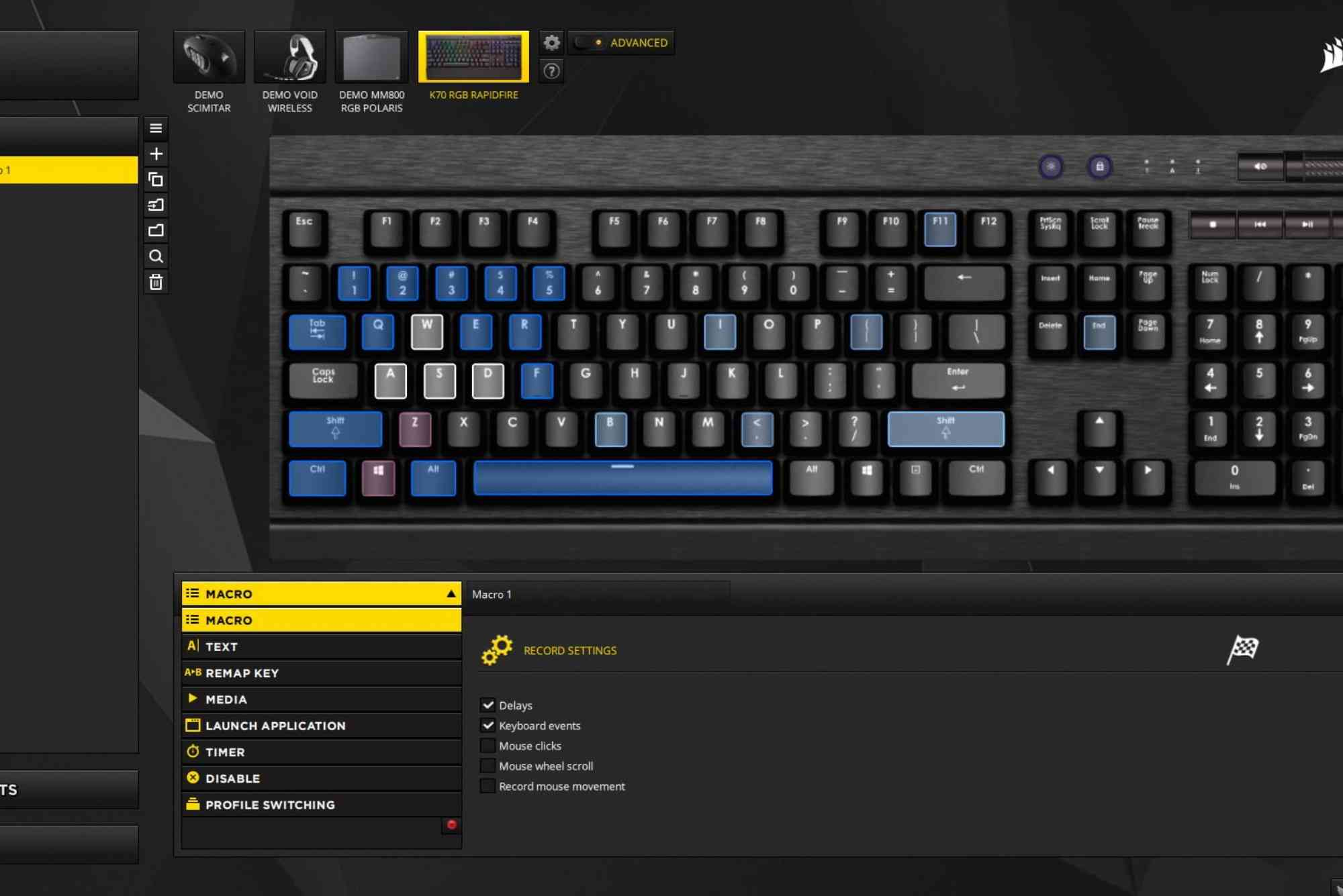
The iCUE software interface is divided into several key areas. The left panel shows all connected Corsair devices, while the central workspace changes depending on what you select. At the top, you’ll find tabs for various customization options like Actions, Lighting Effects, Performance, and Device Settings. The intuitive design ensures that even first-time users can quickly find their way around.
Customizing RGB Lighting on the K70 Rapidfire
One of the most eye-catching features of the Corsair K70 Rapidfire is its vibrant RGB lighting. Through iCUE, you can control each key individually or apply lighting presets across the entire board. You can select from dynamic effects like Rainbow Wave, Spiral, Ripple, and more. If you prefer static lighting, simply choose your color and apply it to specific zones or keys. For advanced users, iCUE allows you to program lighting layers, combining multiple effects for a unique visual experience.
Creating and Assigning Macros
Macros are vital for gamers and professionals who rely on repetitive commands. The Corsair K70 Rapidfire software makes macro creation easy. Navigate to the “Actions” tab, click the plus icon to create a new action, and begin recording your keystrokes. You can set delays between actions, insert mouse clicks, or add media controls. Once done, assign the macro to any key on your keyboard. You can even choose whether the macro plays once, repeats while pressed, or toggles on/off.

Setting Up Profiles for Games and Applications
iCUE allows you to create custom profiles for specific games or apps. Each profile can have its own lighting scheme, macros, and performance settings. This means your K70 Rapidfire will automatically adjust when you launch your favorite title or workflow app. For example, you could set a red lighting theme with specific ability macros for an MMO, and a blue scheme with productivity shortcuts for video editing. Profiles can be imported, exported, and shared—perfect for community builds.
Adjusting Performance Settings
The Performance tab in iCUE lets you fine-tune how your Corsair K70 Rapidfire behaves. You can change the polling rate (up to 1000Hz), disable certain key combinations (like Alt+Tab or Alt+F4), and enable Windows Lock to prevent interruptions during gameplay. You can also adjust debounce time and response speed, giving you a competitive edge in fast-paced games. These features are essential for users who want to maximize efficiency and accuracy.
Using Onboard Memory for Portability
Another powerful feature is onboard memory. The K70 Rapidfire comes with several memory slots that allow you to save profiles directly to the keyboard. This is ideal for LAN events or setups where you can’t install iCUE. Just program your settings at home, save them to memory, and they’ll follow your keyboard wherever you go. You can manage these saved profiles directly within the Device Settings tab in iCUE.
Syncing with Other Corsair Devices
If you own other Corsair gear—such as a mouse, headset, or cooling system—you can sync them all using iCUE. This means unified lighting effects, coordinated macros, and a consistent user experience. For streamers or gamers with RGB-heavy setups, synchronization provides a polished and immersive look. Corsair’s iCUE ecosystem supports integration across a wide range of products, so your entire setup can reflect your style or mood.
Tips for Troubleshooting Common Issues
Like any software, iCUE can occasionally run into glitches. Common issues include the keyboard not showing up, lighting effects not applying, or macros not saving. First, check that your iCUE software is updated. Next, verify that your firmware is current. If your keyboard is still not recognized, try unplugging it and restarting your PC. In some cases, a full reinstall of iCUE may be necessary. You can also reset your keyboard by holding down the ESC key while plugging it in until the lights flash.
Benefits of Using Corsair K70 Rapidfire Software
The customization offered by Corsair K70 Rapidfire software enhances both gaming and productivity. From personalized lighting setups to advanced macros and performance tweaks, every feature is designed to improve your workflow and reaction time. Whether you’re gaming competitively, coding, or multitasking with complex tools, iCUE lets you optimize your keyboard for the way you work and play. The software’s robust capabilities make the K70 Rapidfire much more than just a mechanical keyboard—it becomes an extension of your personal or professional workflow.
Unlock Your Keyboard’s Full Potential
The Corsair K70 Rapidfire is already a powerhouse out of the box. But when paired with its official software, it transforms into a customizable command center. With iCUE, you can tailor every aspect of your keyboard to suit your unique needs—whether you’re gaming, working, or creating. Don’t settle for default settings. Take control, explore the software, and make your Corsair K70 Rapidfire truly yours. Ready to level up your keyboard experience? Download iCUE today and start customizing your K70 Rapidfire like a pro.
By using the Corsair K70 Rapidfire software, you not only enhance the aesthetics of your keyboard but also unlock a world of customization that boosts both gaming and productivity. Take full advantage of what your hardware has to offer—because performance should never be limited by defaults.
FAQs
How do I download Corsair K70 Rapidfire software?
You can download the iCUE software from Corsair’s official website. Just search “Corsair iCUE download” and select your operating system.
Why isn’t my Corsair K70 Rapidfire showing in iCUE?
Make sure your keyboard is properly connected and your iCUE software is up to date. Try restarting your PC or reinstalling the software if the problem persists.
Can I use macros without keeping iCUE open?
Yes, by saving the macro to the onboard memory, you can use it without running iCUE in the background.
Is Corsair iCUE compatible with Windows 11?
Yes, iCUE is fully compatible with Windows 10 and Windows 11. Just ensure you have the latest version.
How do I reset the Corsair K70 Rapidfire keyboard?
To reset, unplug the keyboard, hold down the ESC key, plug it back in, and wait for the lights to flash.
Can I use Corsair iCUE with non-Corsair devices?
No, iCUE is designed specifically for Corsair products and does not support third-party hardware.