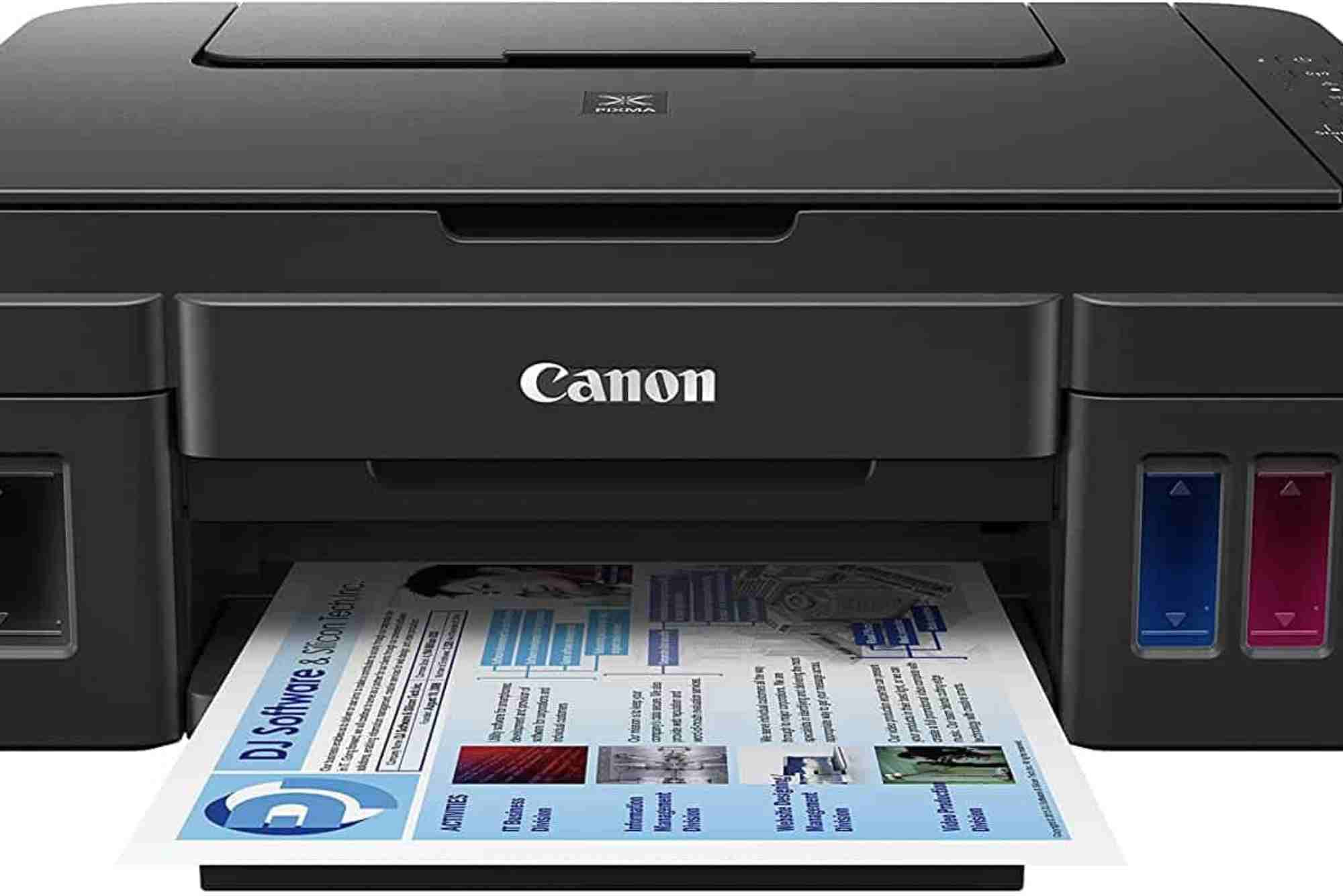
Installing and Using Canon Printer Software Like a Pro
Installing and using Canon printer software doesn’t need to be overwhelming. Whether you’re setting up a new Canon printer at home or integrating it into an office network, the software is essential for seamless printing, scanning, and maintenance. In this guide, you’ll learn how to install Canon printer software properly, configure it for optimal performance, and use its features like a seasoned pro.
From drivers to utilities like Canon IJ Network Tool and My Image Garden, this article will walk you through everything step by step. Let’s make sure you get the most out of your Canon printer.
Why Canon Printer Software Is Important
Every Canon printer relies on its software for core functionality. Without proper installation, even the best hardware won’t perform as expected. Canon provides essential software for:
- Establishing a connection between your device and the printer
- Managing print quality and paper settings
- Enabling wireless printing and scanning
- Updating firmware and driver patches
- Accessing creative tools and maintenance utilities
So, to truly enjoy your Canon printer’s capabilities, getting the software setup right is the first and most crucial step.
How to Install Canon Printer Software on Windows and macOS
Installing Canon printer software depends on your operating system and whether you’re using a USB or Wi-Fi connection. Here’s how to handle both efficiently.
Installation on Windows
Begin by visiting the official Canon website. Search for your printer model and go to the “Drivers & Downloads” section. Canon often bundles the necessary drivers and tools in a package called “Canon Driver Setup.”

Download the installation file, then double-click to launch the installer. The setup wizard will walk you through the process, including options for USB or Wi-Fi connection. Follow the on-screen prompts carefully.
If you’re installing a wireless printer, make sure it’s turned on and connected to the same Wi-Fi network as your PC. The software will detect it and complete the pairing process.
Installation on macOS
For Mac users, the process is similar. Download the macOS-compatible driver and utility package from Canon’s official website. Make sure to select your correct macOS version.
Run the downloaded file and follow the instructions. macOS may prompt you to allow installation from a third-party developer—this is normal. Approve it and proceed.
Once installed, you can add the printer through System Preferences > Printers & Scanners by clicking the plus (+) button and selecting your Canon device from the list.
Key Canon Printer Software You Should Know
Canon offers more than just drivers. The real power lies in the suite of software tools that enhance usability. Let’s break down the most important ones.
Canon IJ Printer Assistant Tool
This utility helps with printer maintenance. You can clean nozzles, align print heads, and check ink levels easily. It’s a must-have for long-term printer health.
Canon IJ Network Tool
Ideal for configuring your printer’s wireless settings, especially in dynamic IP environments. It lets you manage network parameters, including SSID and TCP/IP settings.
My Image Garden
This creative software is designed for users who print photos frequently. It lets you organize, edit, and print photos in various layouts and styles.
Easy-PhotoPrint Editor
This lightweight alternative to My Image Garden is perfect for quick photo editing and layout printing. You can create calendars, collages, and greeting cards.
Common Issues During Installation and How to Fix Them
Even with user-friendly installation wizards, you may run into hiccups. Let’s look at common problems and how to solve them.
Printer Not Detected
If the installer can’t find your printer, first check the connection. For USB, ensure the cable is snug and not damaged. For wireless, make sure the printer is connected to the same Wi-Fi network.
You can use the Canon IJ Network Tool to re-establish the connection manually.
Driver Won’t Install
This often happens if you’re installing a 32-bit driver on a 64-bit system, or vice versa. Always download drivers specific to your OS version. If it still doesn’t work, disable your antivirus temporarily and try again.
Software Crashing or Freezing
This could result from outdated operating systems or software conflicts. Ensure your OS is up to date. Also, avoid running multiple heavy applications during installation.
Using Canon Printer Software Like a Pro
Once installed, it’s time to get comfortable with using the software efficiently.
Adjusting Print Settings
Open the Canon Printer Driver settings on your computer. Here, you can customize:
- Paper type and size
- Print quality (Standard, High, Draft)
- Duplex printing
- Grayscale or color modes
Knowing where and how to tweak these settings can significantly impact your output quality and speed.
Scanning with Canon Software
Use Canon IJ Scan Utility to scan documents or photos. The interface is clean and allows for scanning in various formats such as JPEG, PDF, and TIFF. You can scan directly to email, a folder, or cloud storage.
Performing Maintenance Tasks
The Canon Printer Assistant Tool allows you to:
- Perform nozzle checks
- Clean print heads
- Align cartridges
- Monitor ink usage
Running these tasks monthly keeps your printer in optimal condition.
Updating Firmware and Drivers
Canon occasionally releases firmware updates to improve performance or fix bugs. Use the Canon Support Tool or revisit the driver download page to check for updates. Regular updates ensure security and efficiency.
Best Practices for Long-Term Canon Printer Use
To keep your printer running smoothly, follow these pro tips:
- Always use genuine Canon ink and toner
- Clean the printer exterior and paper feed rollers monthly
- Store paper in a dry, cool place to prevent jams
- Turn off the printer when not in use to conserve energy
Using the Canon software regularly will help you monitor these aspects easily.
Canon Software Compatibility with Cloud and Mobile Printing
Modern Canon printers integrate seamlessly with cloud and mobile platforms like Google Cloud Print, AirPrint, and Canon PRINT Inkjet/SELPHY app.
Using the Canon mobile app, you can print directly from your smartphone or tablet. This is especially useful for quick document access when you’re away from your PC. The app mirrors many of the functions of the desktop software, including maintenance tools and print previews.
Get the Most from Canon Printer Software
Installing and using Canon printer software is the key to unlocking the full potential of your printer. Whether you’re a beginner or an experienced user, mastering the installation process, understanding key tools, and using maintenance features will keep your device running efficiently.
Take the time to explore each utility and feature. With proper installation and smart use, your Canon printer will deliver reliable, high-quality results for years to come.
FAQs
How do I download Canon printer software?
Visit Canon’s official support page, enter your printer model, and download the drivers and software compatible with your operating system.
Why is my Canon printer not connecting to Wi-Fi?
Check your network settings and ensure the printer and computer are on the same Wi-Fi network. Use the IJ Network Tool to reconnect the printer.
Can I install Canon printer software without a CD?
Yes, you can install all required software from Canon’s website. CDs are rarely necessary now.
What is the Canon IJ Network Tool used for?
This tool helps configure and manage wireless settings for Canon printers. It’s especially useful for network troubleshooting.
How often should I update my Canon printer software?
Check for updates every few months or if you notice issues. Canon regularly releases driver improvements and security patches.
Is Canon printer software compatible with macOS Ventura or Sonoma?
Yes, Canon updates its drivers to support new macOS versions. Always select the exact OS version when downloading software.
Do I need to install all Canon utilities?
Not necessarily. Install the drivers and any utilities that match your printing or scanning needs. Photo apps are optional but useful for creative projects.