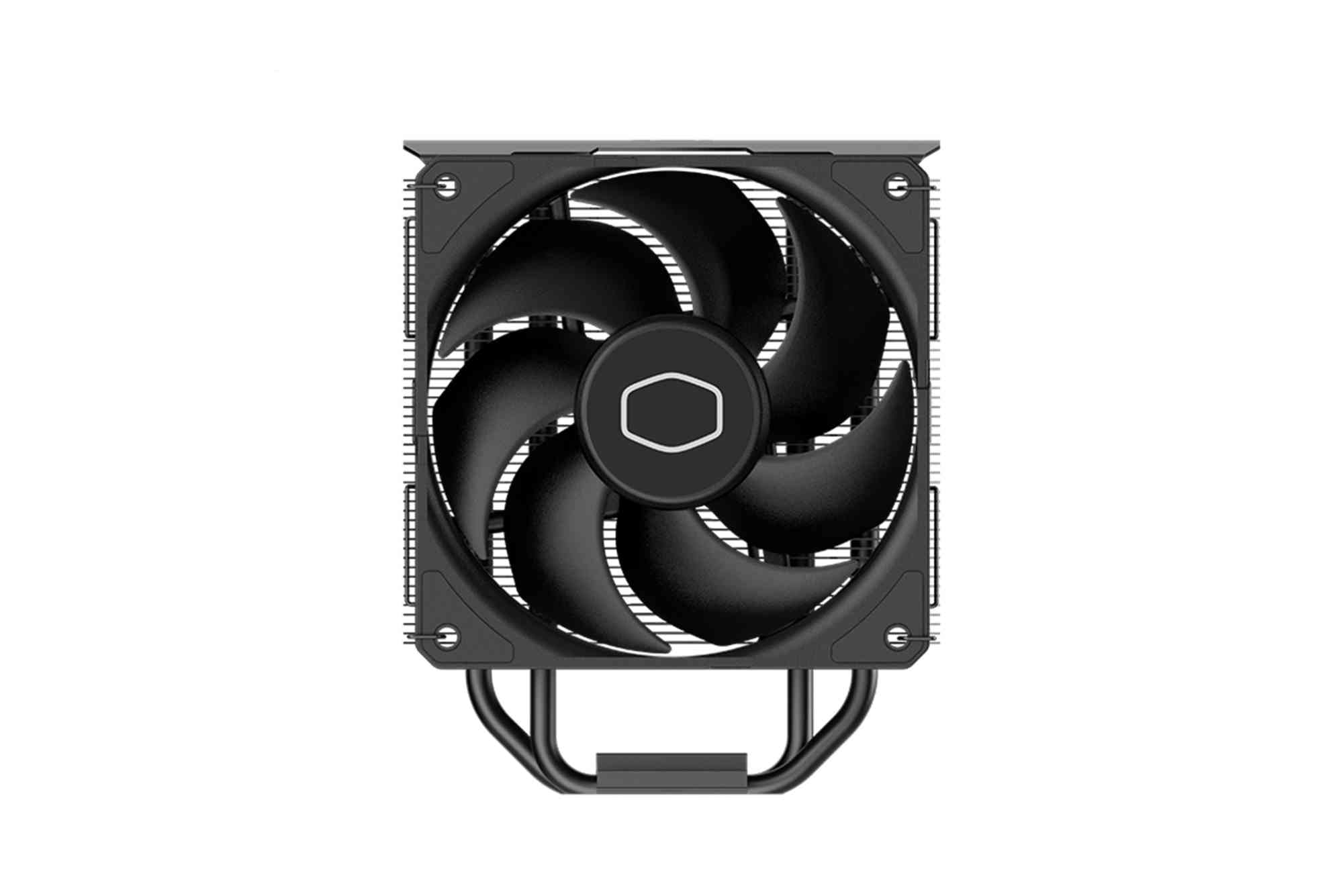
Cooler Master Hyper 212 RGB Software Setup and Tips
The Cooler Master Hyper 212 RGB is one of the most trusted and widely used air coolers among PC enthusiasts. Known for its excellent thermal performance, quiet operation, and customizable RGB lighting, it strikes a perfect balance between performance and aesthetics. However, to truly unlock its potential, proper setup of the Cooler Master Hyper 212 RGB software is essential.
Introduction to Cooler Master Hyper 212 RGB
Before diving into the software setup, it’s important to understand what makes this cooler so popular. The Hyper 212 series has long been a staple in the PC building community, offering high-end cooling at an affordable price. The RGB version adds stunning lighting effects, making it ideal for gamers and creators who want both form and function. With support for major motherboard platforms and an intuitive mounting system, it’s a favorite for both beginners and experienced builders.
What sets the RGB variant apart is its compatibility with various lighting ecosystems like ASUS Aura Sync, MSI Mystic Light, Gigabyte RGB Fusion, and ASRock Polychrome. But if you prefer to control the lighting directly without depending on motherboard utilities, Cooler Master provides its own RGB software.
Software Setup for Cooler Master Hyper 212 RGB
Installing the Cooler Master Hyper 212 RGB software is a simple but crucial process. It allows you to control fan speed, monitor CPU temperatures, and personalize lighting effects. Here’s how to do it correctly.
Check Your RGB Controller
Not all versions of the Hyper 212 RGB come with a standalone RGB controller. Some models rely on your motherboard’s 4-pin RGB header, while others come with a dedicated Cooler Master controller that allows independent software control.
If your model includes the controller, you’re good to go. If it connects directly to the motherboard, you’ll need to use your motherboard’s proprietary software instead.

Downloading the Software
To get started, head over to the official Cooler Master website. Navigate to the “Support” section and search for your Hyper 212 RGB model. You’ll find the compatible RGB software under the Downloads tab.
Make sure you download the correct version based on your controller or motherboard compatibility. The two main software tools Cooler Master provides are:
- MasterPlus+ (MasterPlus Plus): For newer models with updated controllers.
- RGB LED Controller Software: For legacy RGB controllers.
Once downloaded, extract the ZIP file and run the installer. Follow the on-screen instructions. A system restart may be required after installation.
Connecting the RGB Controller
Before launching the software, ensure the RGB controller is correctly connected to both the cooler’s fan and your PC’s USB header. Improper connection will result in the software not detecting your device.
Look for a micro-USB or 9-pin USB 2.0 connector inside your case. Secure the cables tightly. Loose connections are a common reason the software fails to work.
Launching the Software
Once everything is connected, open the Cooler Master RGB software. The interface will display all compatible devices. You should see your Hyper 212 RGB listed. If not, double-check the hardware connections.
From here, you can start exploring fan and lighting settings. The MasterPlus+ interface is user-friendly, featuring real-time previews, custom profiles, and performance logs.
Customizing RGB Lighting and Fan Profiles
One of the key benefits of using Cooler Master’s software is the ability to fine-tune lighting and performance settings based on your preferences.
Setting Up Lighting Effects
You can choose from a variety of lighting modes such as static, breathing, rainbow, strobe, and custom. Each effect can be color-adjusted to match your build theme.
If you’re using other Cooler Master RGB components (fans, pumps, cases), the software allows synchronization across all devices. This creates a cohesive lighting experience, especially in tempered glass builds. Advanced users can set up lighting profiles based on system temperature, allowing for real-time feedback. For example, you can configure the lights to change from blue (cool) to red (hot) depending on your CPU temperature.
Fan Control and Monitoring
Beyond lighting, the software also provides valuable control over fan curves. You can set custom fan profiles that increase RPMs based on CPU or GPU temperatures.
This is particularly useful if you’re doing demanding tasks like gaming or rendering. Instead of relying on the default BIOS fan curve, you get dynamic control, reducing noise and improving cooling efficiency. Some software versions also offer temperature and RPM monitoring. This gives you insight into how your system performs under load, helping you identify thermal issues early.
Troubleshooting Common Software Issues
Despite being user-friendly, you might face some issues while using the Cooler Master Hyper 212 RGB software. Here’s how to resolve the most common problems.
Software Doesn’t Detect the Device
This is usually due to one of the following:
- The RGB controller is not connected to the USB header.
- You’re using a model that doesn’t support standalone software.
- USB drivers need updating.
To fix this, double-check all internal connections. Try using a different USB 2.0 header on your motherboard. Also, update your chipset and USB drivers through your motherboard’s support page.
Lighting Not Syncing or Glitching
This often occurs when multiple RGB control utilities are installed, such as MSI Mystic Light or Aura Sync. These can conflict with Cooler Master’s software.
To avoid conflicts:
- Use only one RGB control utility.
- Disable motherboard RGB sync features if using Cooler Master software.
- Ensure firmware of the controller is updated (via MasterPlus+ if supported).
Software Crashes or Freezes
This can happen due to outdated software or incompatible OS versions. Ensure you’re using the latest version of MasterPlus+ or the RGB LED Controller. Also, run the application as an administrator to avoid permission issues.
Expert Tips for Optimal Performance
To get the most out of your Cooler Master Hyper 212 RGB software, consider the following expert recommendations.
Keep Firmware Updated
Cooler Master occasionally releases firmware updates that fix bugs, add features, or improve performance. Always check for updates in the MasterPlus+ interface.
Set Silent and Performance Profiles
Create at least two custom fan profiles: one for silent desktop work and one for performance-heavy tasks like gaming. Switch between them depending on your workload for better thermal and noise control.
Match Lighting with PC Components
If you’re into aesthetics, sync the RGB color scheme with your GPU, RAM, and keyboard lighting. Most motherboards allow unified control if you’re using compatible RGB headers. This creates a professional, polished look.
Cable Management Matters
Tidy cable routing not only looks clean but also improves airflow. Ensure that RGB cables and USB headers are tucked away neatly and don’t interfere with fan blades or other components.
Setting up the Cooler Master Hyper 212 RGB software is key to unlocking the full potential of this iconic cooler. With the right setup, you can enjoy dynamic lighting, advanced fan control, and superior thermal performance. Whether you’re a casual user or a hardcore PC enthusiast, mastering the software ensures your cooling system runs efficiently while looking spectacular.
If you’re building a custom PC or upgrading your existing setup, don’t overlook the software aspect. It’s not just about hardware; smart configuration leads to better performance and longer component lifespan. Ready to upgrade your cooling game? Download the Cooler Master software today and take full control of your Hyper 212 RGB experience.
FAQs
How do I control the RGB on my Hyper 212 RGB?
You can control the RGB using the Cooler Master MasterPlus+ software if your model includes a compatible controller. Otherwise, use your motherboard’s RGB utility.
Why is my Hyper 212 RGB not lighting up?
Check if the RGB header or controller is correctly connected. Also, verify that the power is on and the software detects the cooler.
Does the Hyper 212 RGB work with Aura Sync?
Yes, if connected to an ASUS Aura Sync-compatible RGB header, the cooler will sync with other Aura Sync components.
Can I use Cooler Master software without the controller?
No, the Cooler Master RGB software requires a proprietary controller. If your model doesn’t include it, you’ll need to rely on motherboard utilities.
Is MasterPlus+ compatible with Windows 11?
Yes, the latest versions of MasterPlus+ are compatible with Windows 10 and Windows 11. Always download the latest version for optimal compatibility.